
7.2.8 Reverse a Claim
If you need to reverse a Claim, you must be in the Claim History screen. (Follow the steps outlined in Section 7.2.7 to navigate to this screen.)
Step 1: Locate the Claim
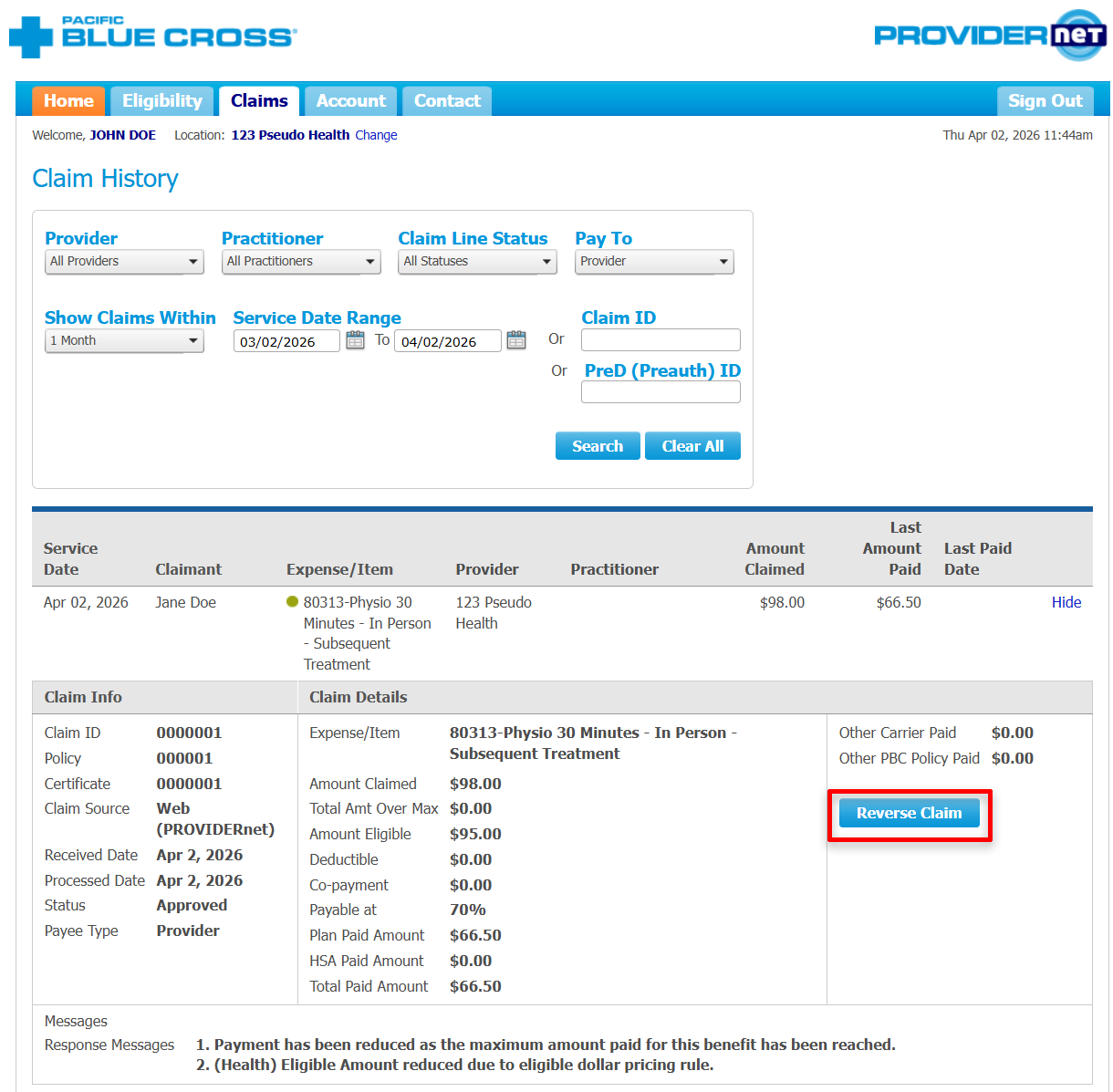
Once you have navigated to the specific Claim you would like to reverse, click on Reverse Claim.
Step 2: Confirmation
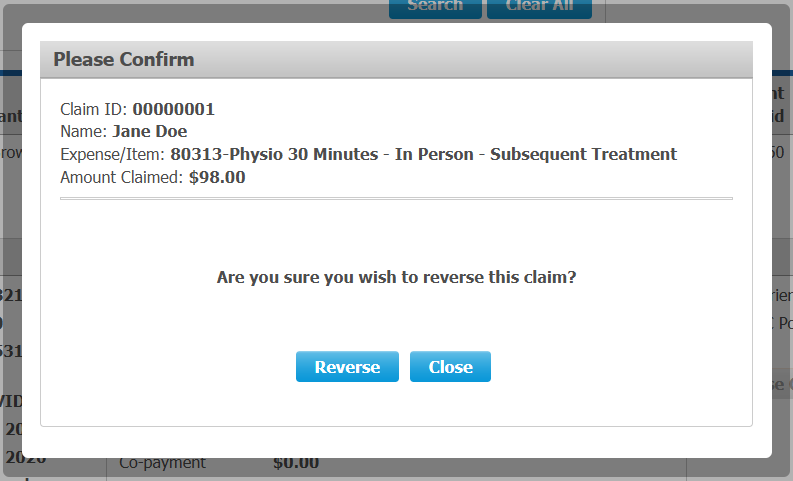
Review Claim Information
Confirm the Claim you want to reverse by reviewing the displayed information including Claim ID, Name, Expense/Item, and Amount Claimed.
Confirm Reversal
Click Reverse to proceed with the reversal.
Step 3: Reversal Confirmation
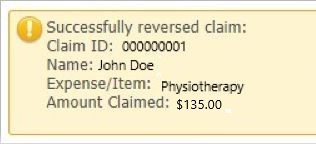
View Reversals
After you have reversed a Claim, if you return to search Claim History, the Claim will now appear as having a negative amount paid.
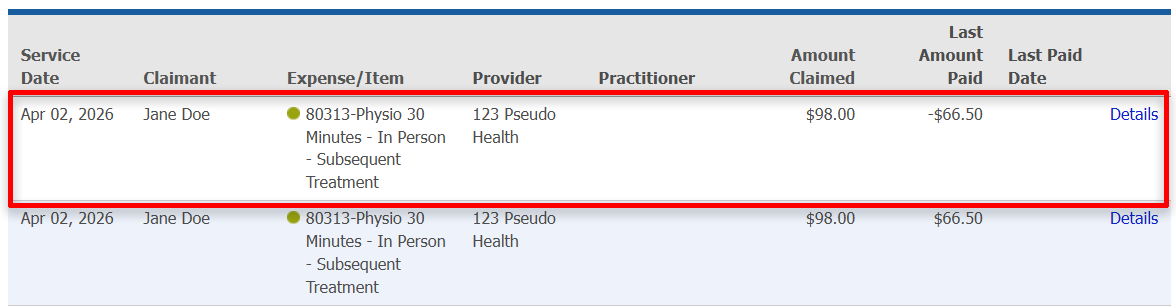
Example
| Service Date | Claimant | Expense/Item | Amount Claimed | Amount Paid |
|---|---|---|---|---|
| Jun 19, 2019 | John Doe | Physiotherapy 60 Minutes and Up - Subsequent Treatment | $135.00 | -$135.00 |
| Jun 19, 2019 | Jane Doe | Physiotherapy 60 Minutes and Up - Subsequent Treatment | $135.00 | $135.00 |