
Plan Administrator Guide to the Member Enrollment Form
With Digital Member Enrollment, adding new plan members is easy and takes just a few minutes.
Plan administrators invite new plan members to enroll, enabling them to provide their details directly to Pacific Blue Cross. This means that administrators are no longer required to collect and input new member information themselves.
Once you have invited a new plan member to enroll through ADMINnet, the member will receive the following email. If they do not receive this email, please ask that they check their junk or spam folder.
The member will click START ENROLLMENT to access the enrollment form.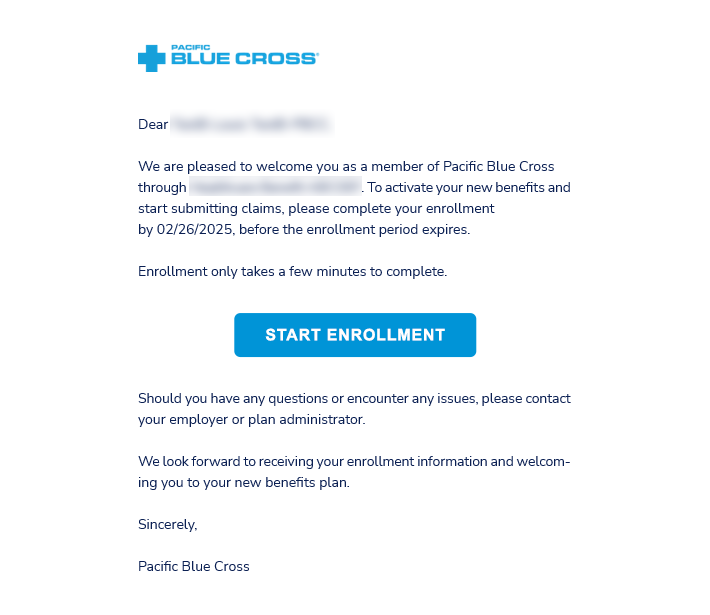
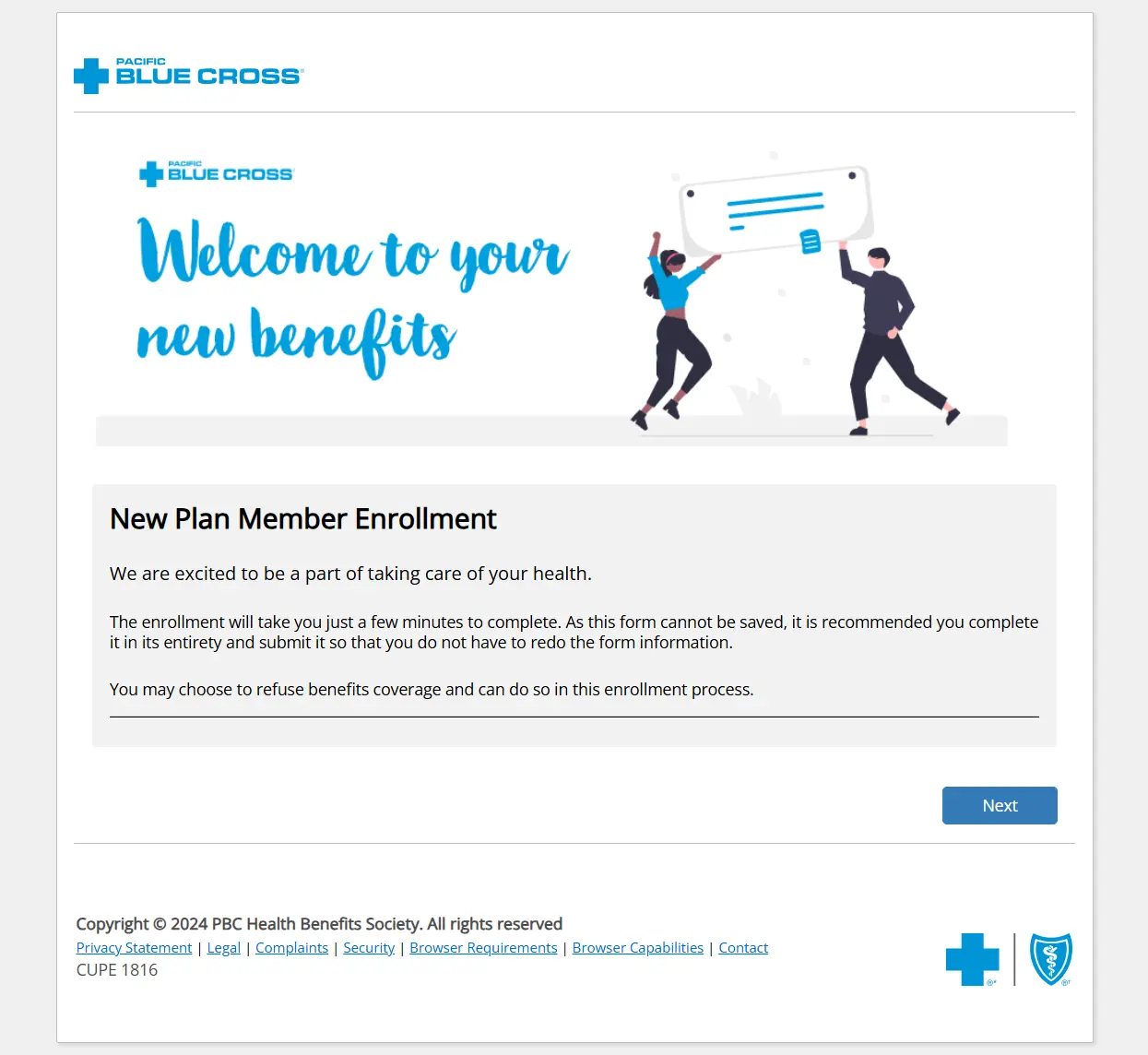
The member will be taken to this homepage. From here, they will be guided through the following steps.
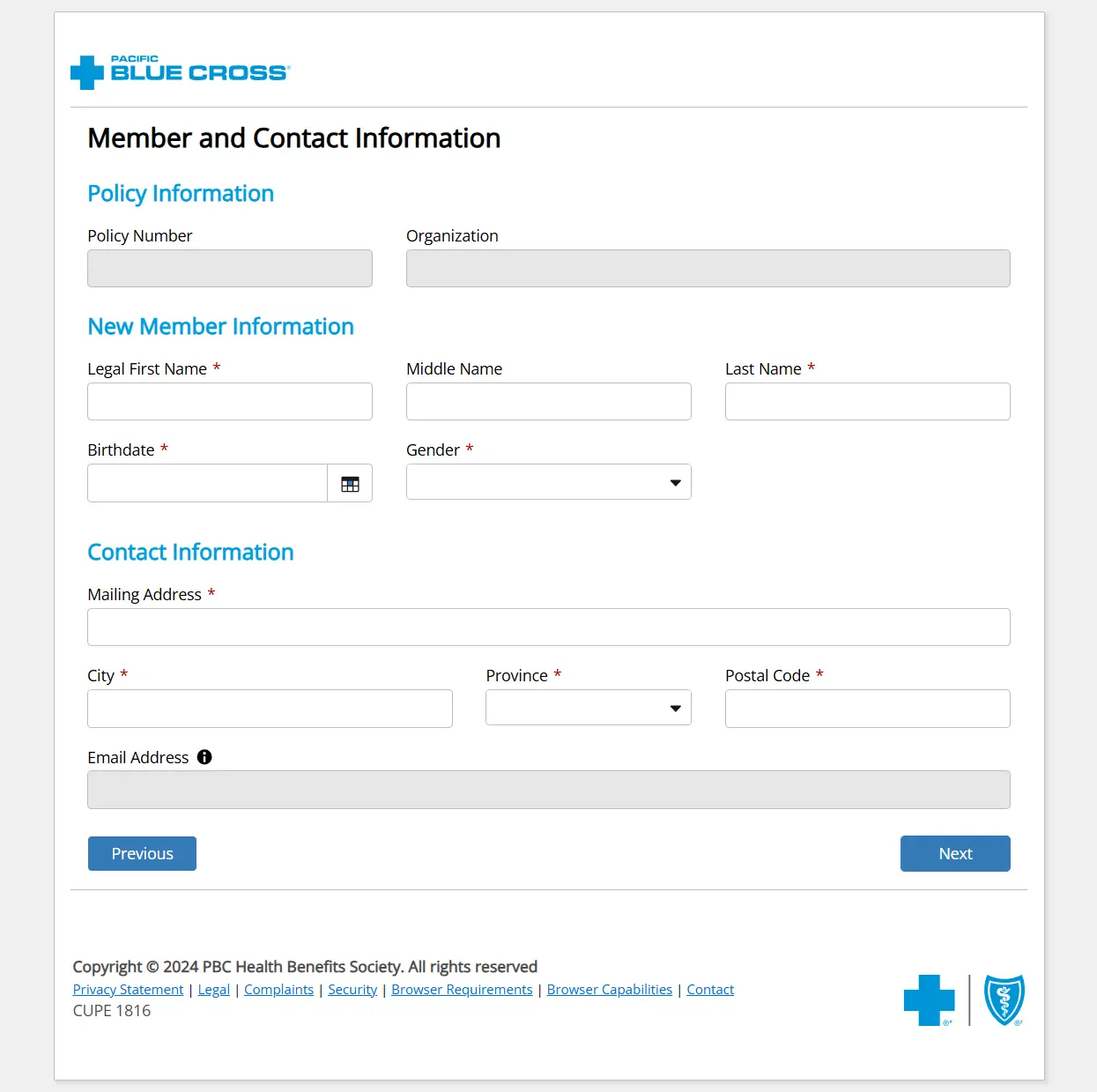
- The member will be prompted to fill in their personal information. The information in the greyed-out sections will be pre-populated and cannot be changed.
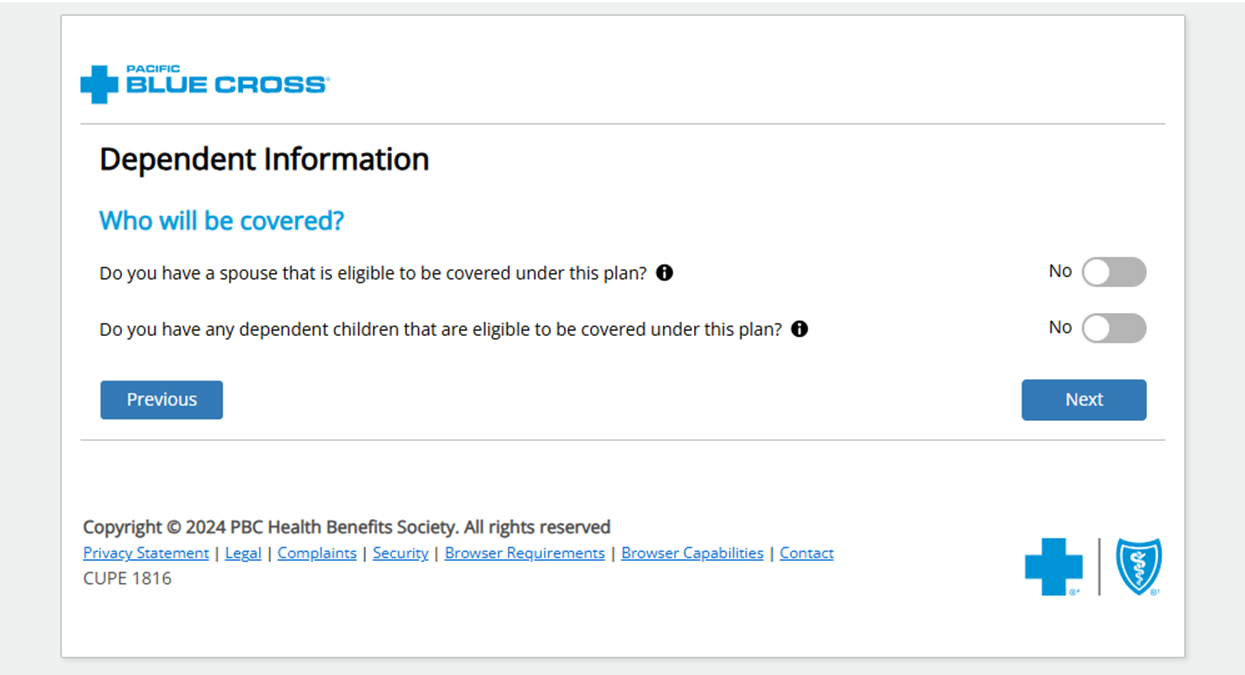
- On the following page, if the member has dependents, they will toggle the buttons to indicate that they have a spouse and/or dependent child(ren).
- If the Member toggles “Yes” to indicate that they have a spouse or dependent child(ren), they will be taken to a Dependent Information section, where they will be prompted to fill out their dependent’s personal information.
-
Under the Dependent Child Details section, they can toggle to indicate if their dependent is a full time post-secondary student and/or if their dependent has disabilities.
-
The member also has the option to Add Another Dependent.
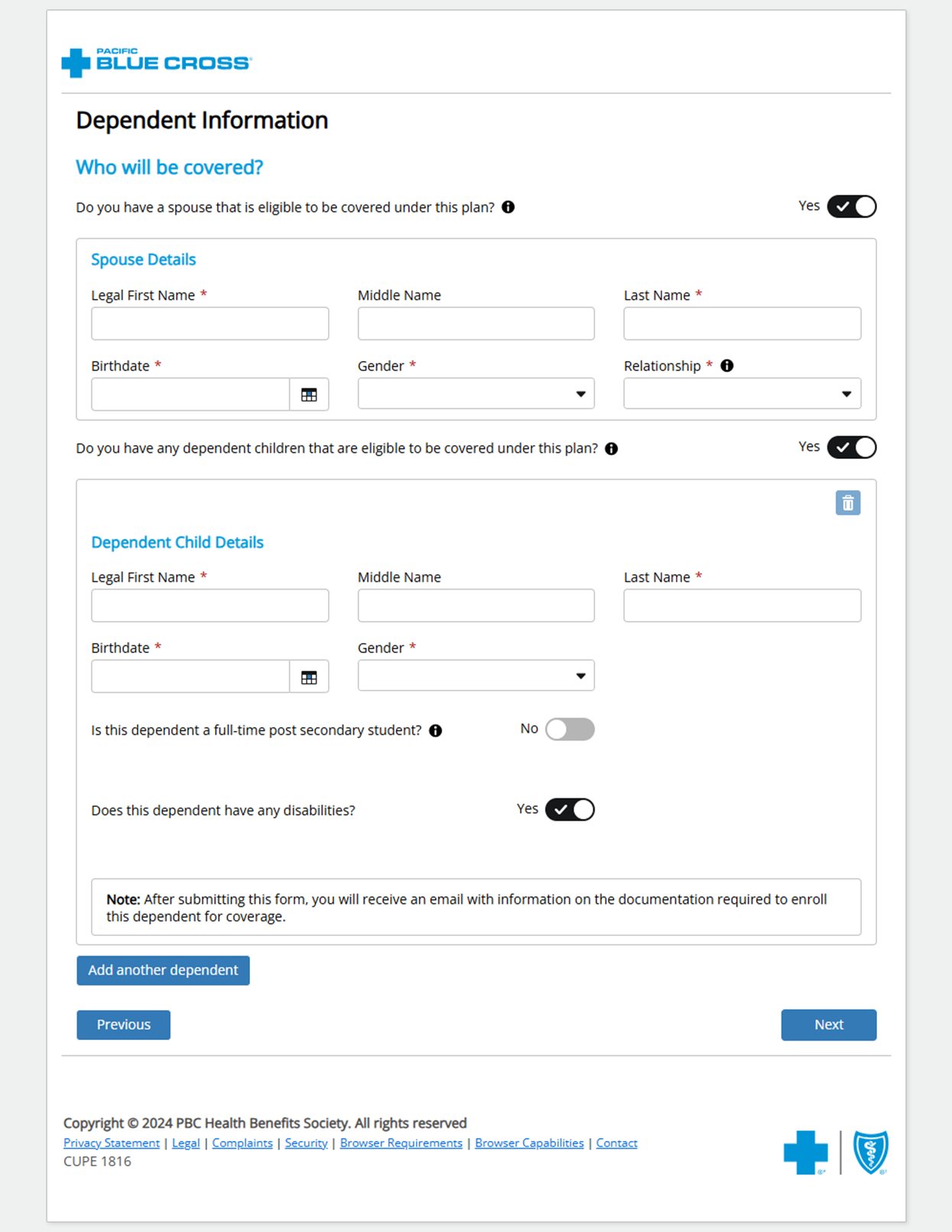
- If the member indicates that a dependent has disabilities, they will be sent an email prompting them to provide proof of disability, which will be submitted to the plan administrator.
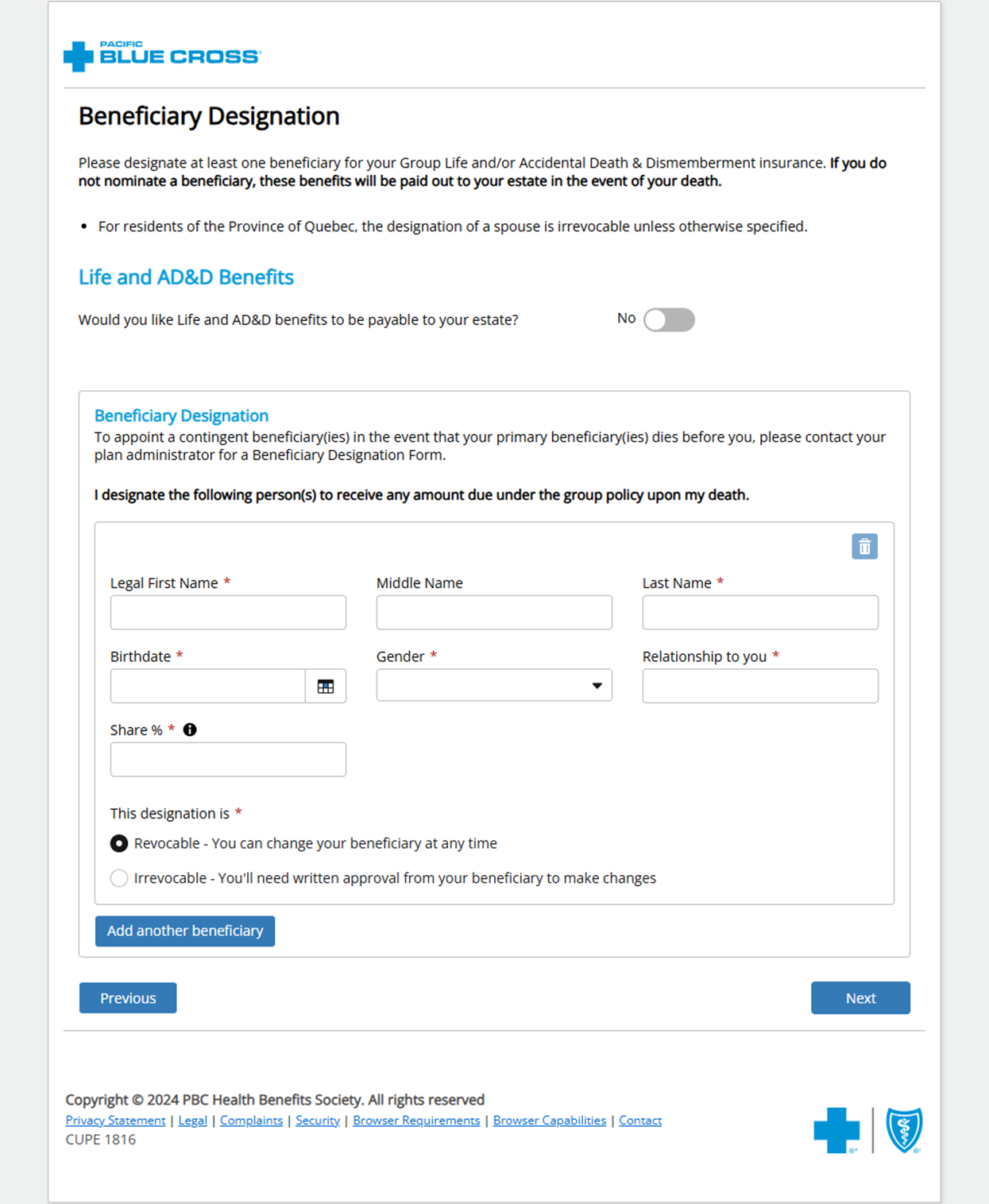
- If the member’s policy includes Life and/or Accidental Death & Dismemberment insurance, they will next be taken to the Beneficiary Designation section. On this page, the member will be prompted to designate at least one beneficiary for their insurance policy.
-
In this section they can add multiple beneficiaries and indicate the share percentage for each beneficiary. The member must also select whether the designation is revocable or irrevocable.
-
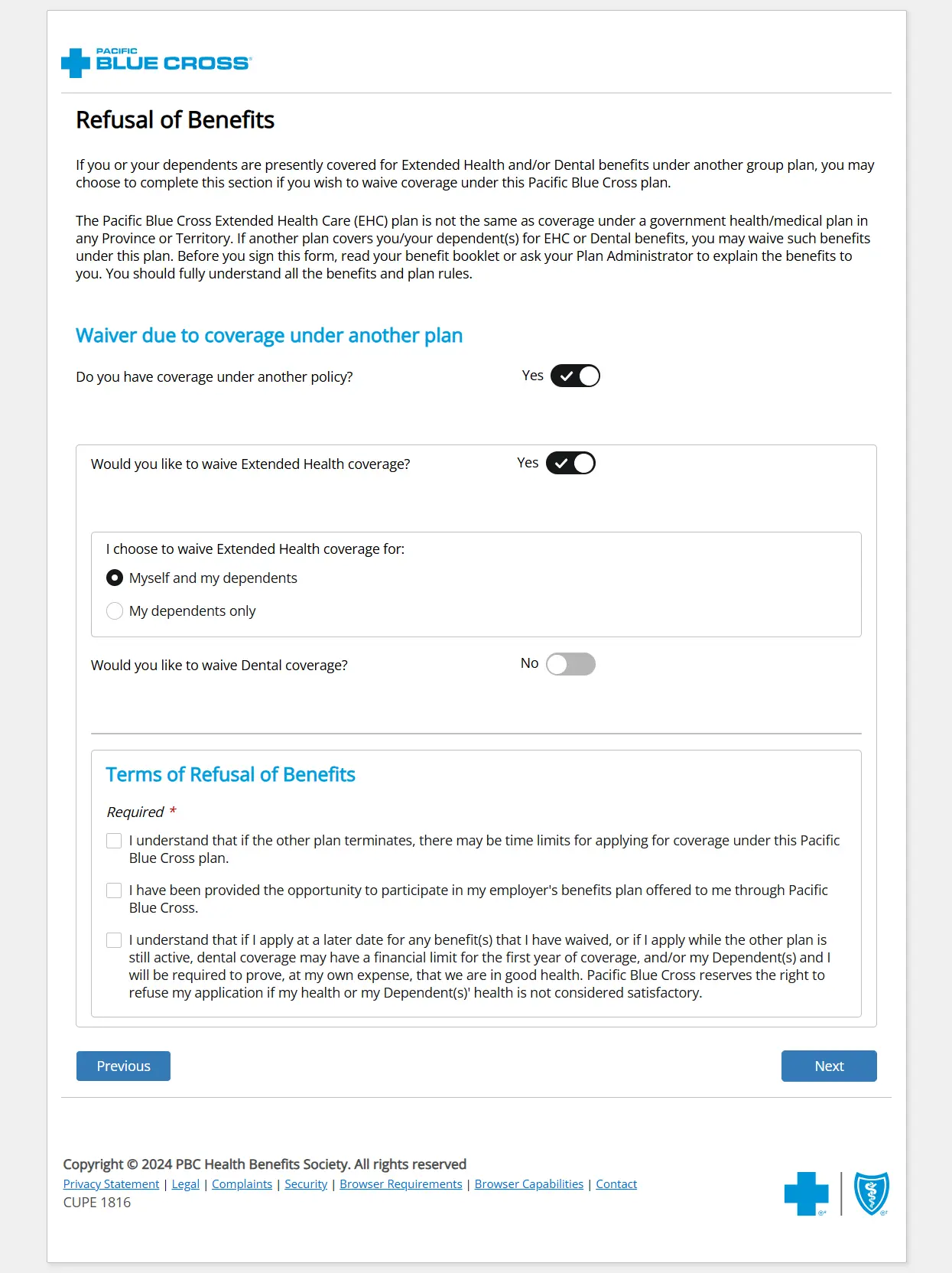
Next, the member can toggle the button to indicate if they would like to waive benefit coverage for themselves and/or for their dependents. They would typically select this option if they have existing benefits under another plan.
- The final page of the form is the Agreement, which the member must read through and check three separate boxes in order to proceed.
On this page, the member will be prompted to add their signature before clicking Submit.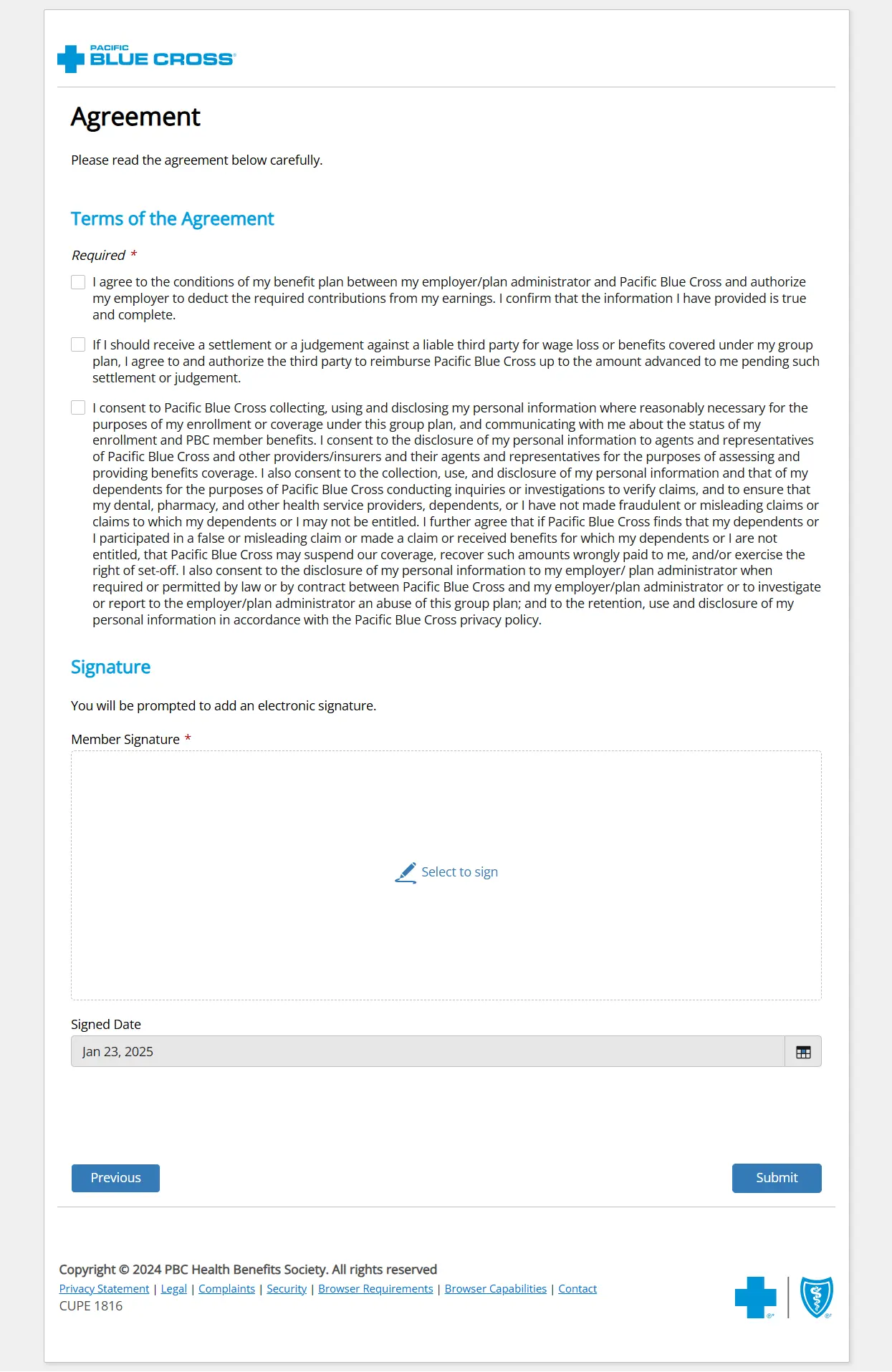
- The member will be taken to a confirmation page. From here, they can explore other resources including FAQs and About Pacific Blue Cross.
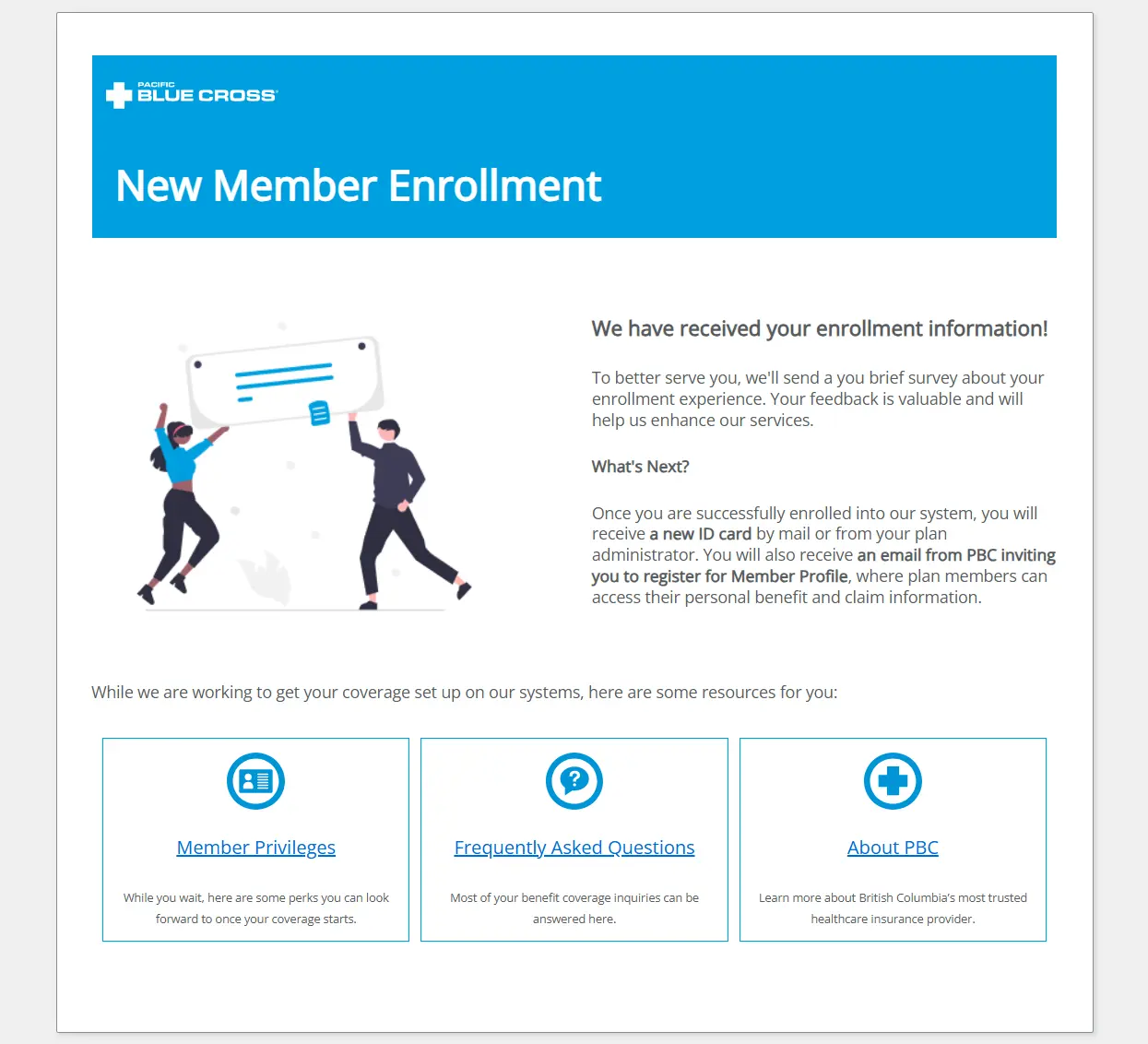
-
The member will also receive an email inviting them to register for Member Profile, so they can access their benefits information and submit online claims. In order to register for Member Profile, they will need their Policy Number and ID Number, which will be included on the Pacific Blue Cross ID card that they will receive by mail at their registered address. Plan administrators can also easily find this information in ADMINnet.
-
The member will receive a brief feedback survey asking for their comments on the Digital Member Enrollment process, so we can continue to improve our systems.